
Entertainment
Unlock Your Samsung Smart TV’s Hidden Features with This Guide

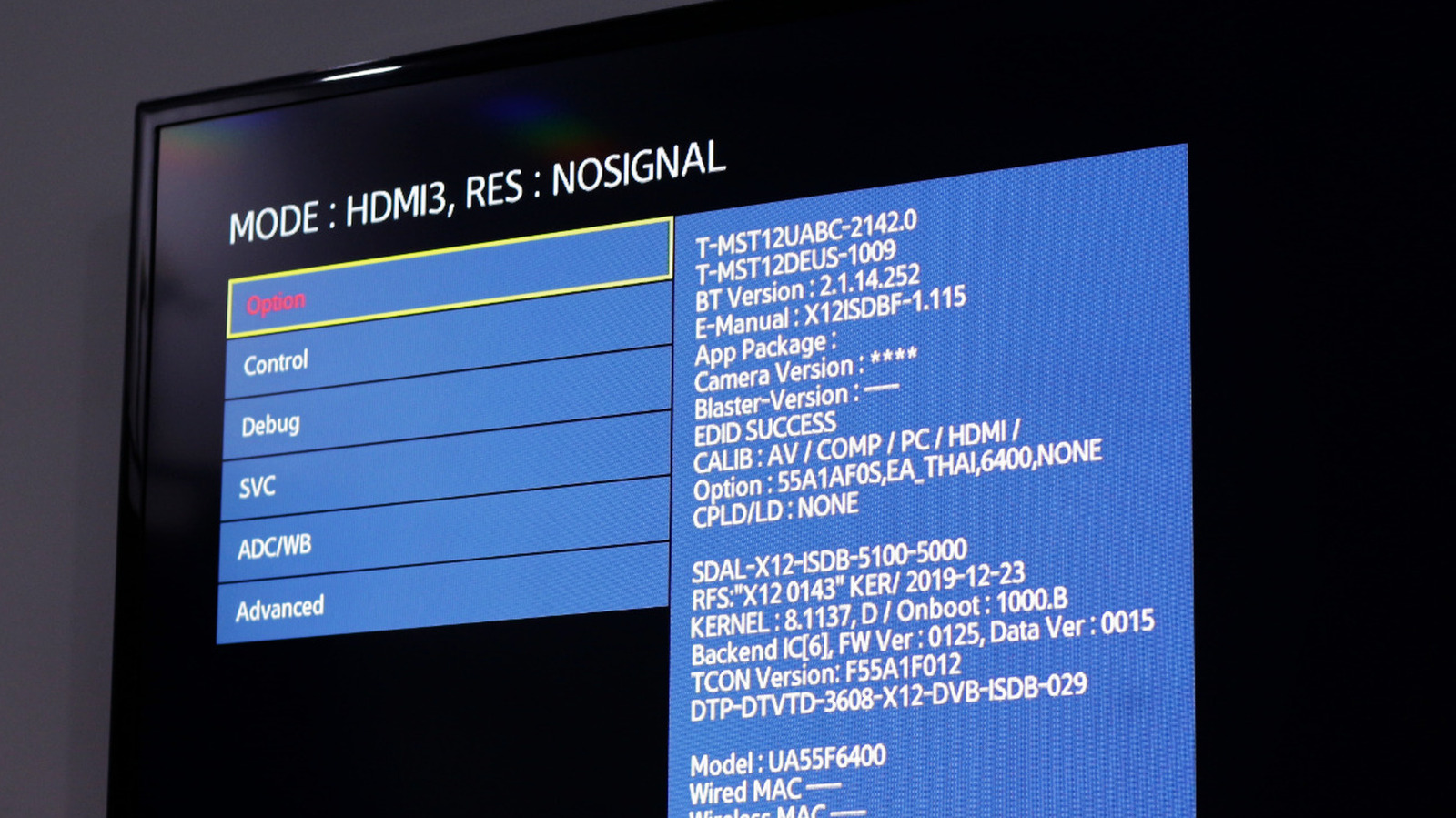
Smart TVs have revolutionized home entertainment since their introduction in the late 2000s. With platforms like Netflix leading the way for on-demand streaming, these televisions have become an essential part of modern living. Today, the market is flooded with affordable options, especially from brands like TCL and Hisense, making it increasingly rare to find a poorly-rated TV.
As features expand, many users are unaware of the hidden capabilities of their smart TVs, including a service menu that provides advanced settings and diagnostics. For Samsung users, accessing this hidden menu can enhance their viewing experience, but caution is advised.
Accessing the Hidden Menu
To reach the service menu on a Samsung Smart TV, users must follow specific button combinations on the remote. These combinations are designed to prevent accidental changes to important settings, which could affect the TV’s performance.
For models with smaller remotes, the process is straightforward:
1. Turn on your TV.
2. Navigate to **Settings > Sound Settings** and ensure that “Sound Output” is set to “TV Speakers.”
3. While the TV is on, quickly press: Mute, Up, Down, Enter/OK, Mute.
For those with a full-sized remote, the steps differ slightly:
1. Turn on the TV, then put it in standby mode by quickly pressing the power button.
2. With the screen off, press the following in order: Info, Menu, Mute, Power.
Should these methods fail, searching online for your TV model followed by “service menu” may yield helpful results from other users.
Understanding the Service Menu
Once access is granted, the service menu reveals a wealth of information. Most notably, users can check the total usage hours of the panel, a valuable metric for anyone considering purchasing a used television. The menu also offers a variety of advanced settings not available in the standard menu, including options for adjusting picture quality, such as white balance and gamma levels.
Another significant feature is the Hospitality Mode, often pre-configured for commercial settings like hotels. If mistakenly activated on a consumer model, disabling this mode will restore the full functionality of the TV.
While the service menu can provide valuable insights, modifying settings without a clear understanding can lead to complications. Accessing it primarily for diagnostic information is recommended to avoid unintended issues.
As smart TVs continue to evolve, understanding their full range of features can enhance user experience. For Samsung TV owners, knowing how to access and navigate the service menu can unlock capabilities that go beyond basic viewing.

Taste Test Reveals Best Mince Pies from Major UK Supermarkets

Baba Vanga Predicts Alien Contact and Global Upheaval in 2026

Astronomers Uncover the Pulsating Mystery of 3I/ATLAS

Ajax Match Abandoned After Fireworks Erupt in Stands

Asia’s Longest Domestic Flights: Some Stretch Over 3,000 Miles

Inmates Sneak in Fried Chicken Takeaways at HMP Wandsworth

Parkdean Resorts Launches Major Black Friday Discounts for 2026 Stays

Former Rockstar Employee Reveals GTA 6 Animations in Leak

Maintain Your HVAC System: Avoid Costly Repairs This Winter

Iconic 90s TV Show House Hits Market for £1.1 Million

Milk Bank Urges Mothers to Donate for Premature Babies’ Health

Alessia Russo Signs Long-Term Deal with Arsenal Ahead of WSL Season

Shoppers Flock to Discounted Neck Pillow on Amazon for Travel Comfort

Museums Body Critiques EHRC Proposals on Gender Facilities

Trump Visits Europe: Business, Politics, or Leisure?

Japanese Teen Sorato Shimizu Breaks U18 100m Record in 10 Seconds

Couple Shares Inspiring Love Story Defying Height Stereotypes

Anglian Water Raises Concerns Over Proposed AI Data Centre
-
 Entertainment2 months ago
Iconic 90s TV Show House Hits Market for £1.1 Million
-
 Lifestyle4 months ago
Milk Bank Urges Mothers to Donate for Premature Babies’ Health
-
 Sports3 months ago
Alessia Russo Signs Long-Term Deal with Arsenal Ahead of WSL Season
-
 Lifestyle4 months ago
Shoppers Flock to Discounted Neck Pillow on Amazon for Travel Comfort
-
 Politics4 months ago
Museums Body Critiques EHRC Proposals on Gender Facilities
-
 Business4 months ago
Trump Visits Europe: Business, Politics, or Leisure?
-
 Lifestyle4 months ago
Japanese Teen Sorato Shimizu Breaks U18 100m Record in 10 Seconds
-
 Politics4 months ago
Couple Shares Inspiring Love Story Defying Height Stereotypes
-
 World4 months ago
Anglian Water Raises Concerns Over Proposed AI Data Centre
-

 Sports4 months ago
Bournemouth Dominates Everton with 3-0 Victory in Premier League Summer Series
-

 World4 months ago
Wreckage of Missing Russian Passenger Plane Discovered in Flames
-

 Lifestyle4 months ago
Shoppers Rave About Roman’s £42 Midi Dress, Calling It ‘Elegant’